Connecting iCloud
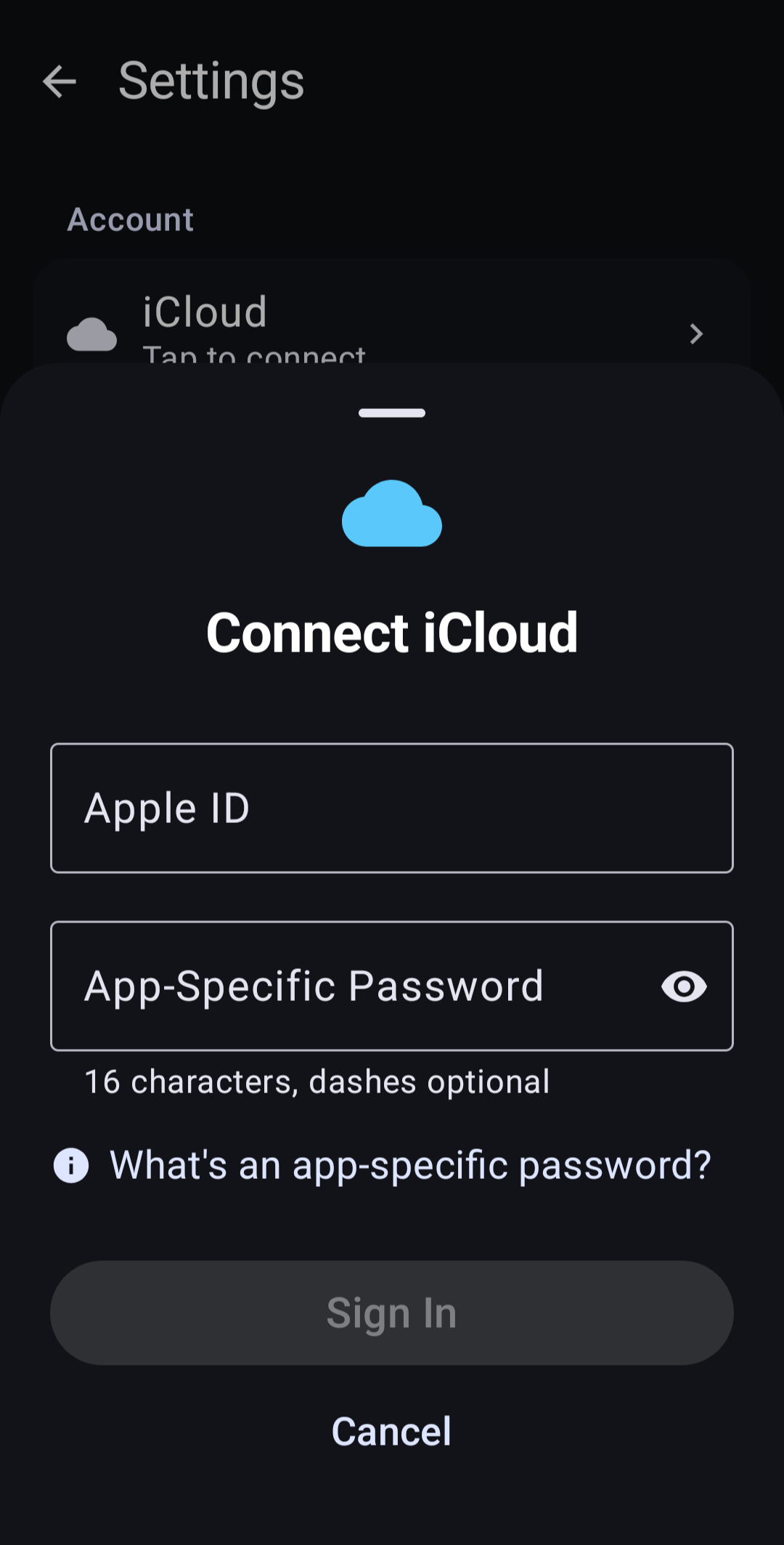
KashCal connects to iCloud's calendar server directly. You don't need a bridge app.
You need an app-specific password
iCloud doesn't accept your normal Apple ID password in third-party apps. You need an app-specific password, which Apple creates for you. If the Apple ID or password is wrong, sign-in fails with this message:
Invalid Apple ID or app-specific password. Please check your credentials.
An app-specific password lets you sign in without sharing your main Apple ID password. You can revoke it at any time without changing your main password.
Create an app-specific password
- Go to account.apple.com and sign in with your Apple ID.
- Open Sign-In and Security.
- Choose App-Specific Passwords.
- Click Generate, then copy the password.
The password has 16 characters, shown as xxxx-xxxx-xxxx-xxxx. You can paste it with
or without the dashes.
The sign-in screen has steps for this too, under What's an app-specific password?
Add the account in KashCal
- Open Settings, tap Calendar accounts, then tap Add iCloud.
- Enter your Apple ID email address.
- Paste the app-specific password into App-Specific Password.
- Tap Sign In.
KashCal finds all your calendars, including calendars others share with you, and starts the first sync. A calendar shared with you as view-only is read-only in KashCal.
You can connect one iCloud account. Once it's connected, Add iCloud no longer shows.
Apple assigns each account to a regional server. KashCal stores the main iCloud address, so sync keeps working when Apple moves your account to another server. You never enter a server address.
Managing or removing the account
Tap the account under Settings → Calendar accounts to open its sheet. It has rename, the Calendar and Contacts switches, Sync Now, Discover New Calendars, Change Password and Sign Out. See Managing your accounts. Contact sync has its own page.
Use Change Password to enter a new app-specific password. Signing out removes the account's synced calendars from this device. Your events stay in iCloud.
Trouble signing in?
- Use an app-specific password, not your Apple ID password.
- Enter the full email address of your Apple ID.
- Changing your Apple ID password revokes your app-specific passwords. Create a new one, then use Change Password.
- See Sync troubleshooting.